
Taking off
Count with Tally Assist
Teach Tally one symbol and let it find the rest, then check what it found.
Counting by hand
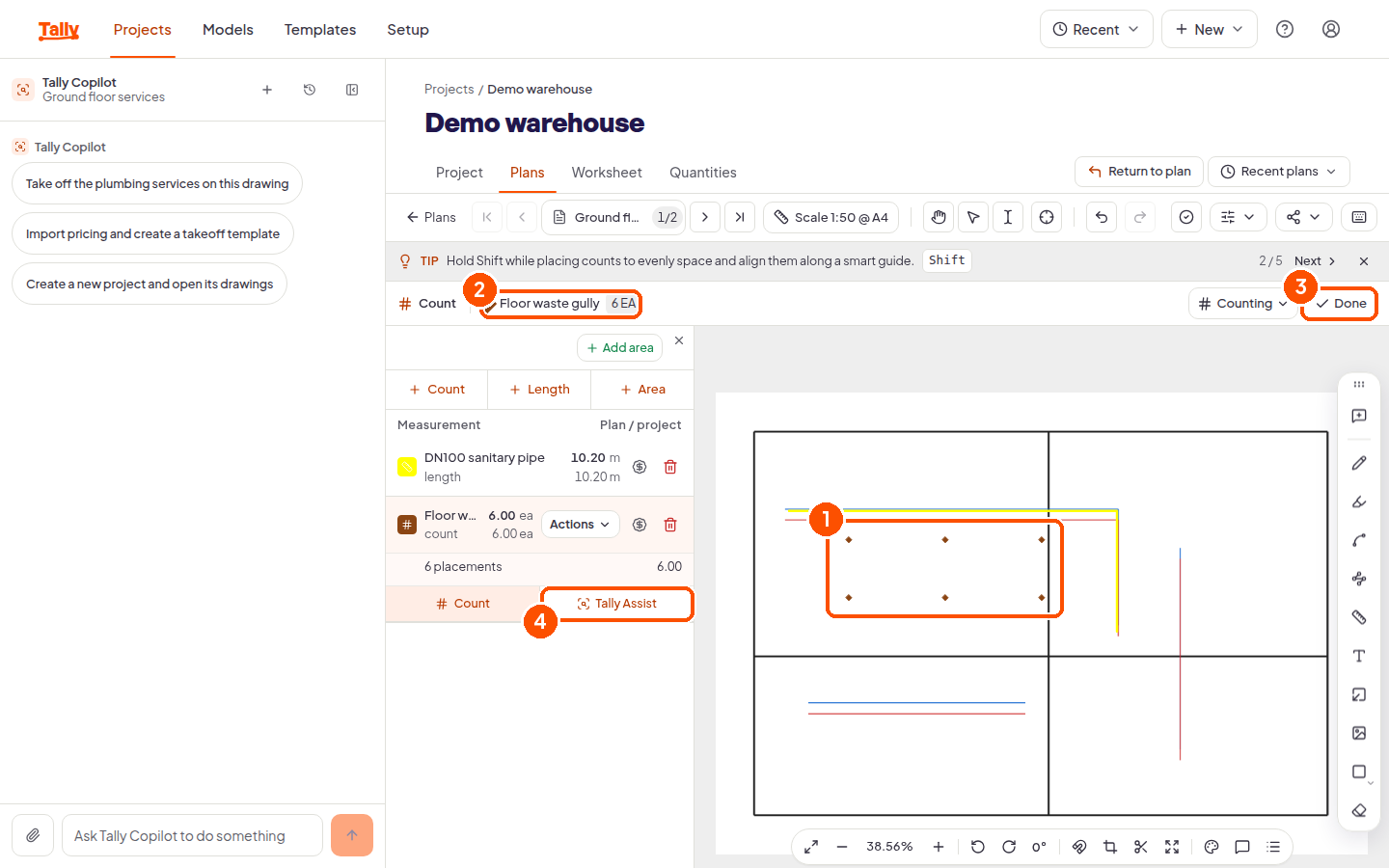
Start a count the normal way: choose + Count on the panel, describe what you are counting, price it, then choose Create. Now every click on the drawing places one symbol, and the bar above the sheet keeps a live tally, such as “6 EA”. Choose Done when you have them all.
Hold Shift while placing to space and align symbols along a smart guide, which is what you want on a row of identical fittings.
When there are hundreds of them
Tally Assist appears next to your count once it exists. It does one job, and the panel says what it is: auto-count a repeating symbol. You show it one example and it goes looking for the rest.
- Choose Tally Assist.
- Pick the Count group the results should land in, or type a name and choose New to start one. Each search counts one fixture type into its own group, so keep separate fittings in separate groups. The panel confirms where they are going with a line reading “Counting into” and the group name.
- Under Example symbol, drag a box around one of them on the drawing. Direction matters, and the panel spells it out: left to right takes only complete elements, right to left also takes elements the box touches.
- Under Search options, choose This page or All pages.
- Read Results. It shows the total found, and how many counts you placed by hand, so the two never get confused.
- Review what it found before you accept it. While a search has results you have not accepted, the panel shows an Unapplied marker so you cannot walk away thinking the job is done.
What the panel tells you while it works
Tally Assist explains itself rather than handing you a number to trust blindly. Lines you may see:
How it matched. Either it is matching the exact label text, or it is matching the shapes you selected. Two labels can look the same on screen and be found different ways, so it says which.
What your box actually grabbed. On a drawing exported from CAD it can group by the drawing file itself, and will tell you how many items in the source drawing your selection covered. If that is more than you wanted, it offers to select the lines separately.
When the example is too plain. A symbol made of one or two strokes repeats all over a drawing, so Tally warns the result may be over-counted and suggests putting more of the symbol inside your box.
Low confidence. Matches it is less sure about are counted separately, so you know how much of the number deserves a look.
It is your count, not its count
Treat the result as a first pass to review, not an answer. The panel is built around checking: results arrive as something to include or exclude, and the count only becomes yours when you accept it.
When it will not help
Tally Assist runs in your browser. If it cannot run there, it says so plainly rather than quietly under-performing, and tells you why.
It also does far better on a PDF exported from CAD than on a scan, because a scan has no drawing objects to match against. On a scanned sheet, expect to count by hand.
Next
Counting done, put your notes and clouds on the sheet in mark up a drawing.